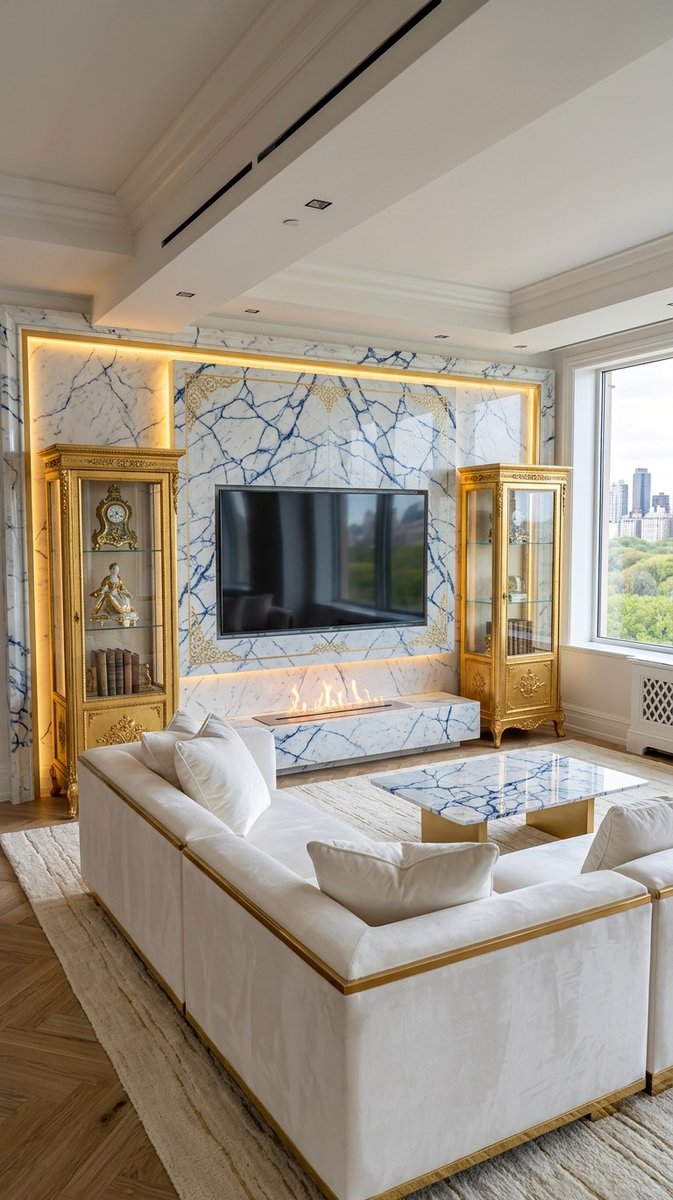
Turn Any Photo Into a Media Wall Design with AI
6 June 2026 · 12 min read
Yes — you really can turn any photo into a bespoke media wall design with AI. A photo of your actual room sets the architecture; any inspiration image — your cat, a cartoon, a fish, even a decorative door handle — sets the style, and the whole process takes about five minutes. Here's exactly how, covering both designing a media wall from a photo of your room and designing one from any random image.
What You Need
- ✅ An iPhone — the Aspire Interiors app is iOS-only
- ✅ A photo of your room — daylight, corner angle, full wall visible
- ✅ Any random image — a cartoon, a pet photo, a flower, a door handle. Literally anything.
- ✅ Five minutes — that's the entire workflow
- ✅ 1 design credit — Design Full Room uses 1 credit; optional add-ons like Remove Furniture use 0.5 extra
Introduction: Why Random Inspiration Works
Most people think AI room design requires a mood board, a Pinterest folder, or at least a photo of a room you like. They don't.
The Aspire Interiors app can take any image — a photo of your pet, a cartoon, a fish, a door handle, a skull with wings — and extract the colours, textures, and atmosphere to create a bespoke media wall design. The AI doesn't care what the image is. It cares about the colours, the materials, the feeling.
This tutorial shows you exactly how, using real screenshots and results from seven random images we tested. Aspire Interiors is a luxury interior design app created by Mark Lunnemann, founder of AutoMazen.ai, and built around the 17-room suite system and the 5-element architectural foundation. The app follows the warm modernism trend — walnut, brass, terracotta, earthy neutrals — and is available worldwide on the App Store.
For the fundamentals behind the app, see how AI interior design works in our complete guide.
"The AI doesn't copy the image. It translates it. A goldfish becomes marble. A cartoon cat becomes a pink industrial space. That's the difference between generic AI and a system built on real design principles." — Mark Lunnemann, founder of AutoMazen.ai
The Random Images We Tested
We tested seven images you would never expect to work as interior design inspiration:
- Image 1: A close-up of an ornate decorative surface with gold and brass metalwork, white and pale blue panels, and marble-like veining. Think Rococo-style scrolls and glossy ceramic inlays.
- Image 2: A black cat wearing a beret, red scarf, and striped Breton sweater, sitting at a Paris café table with the Eiffel Tower behind.
- Image 3: A hooded skeletal figure with large feathered wings, holding a scythe, seated on a stone grave marker. Monochrome, gothic, highly detailed.
- Image 4: A watercolour illustration of a white rabbit peeking over a white picket fence, surrounded by strawberry leaves and red strawberries.
- Image 5: A tight close-up of a lion's face showing tawny-brown and golden mane fur, amber eye, and black background.
- Image 6: A white and gold koi fish with flowing fins, glowing warm lights on its whisker filaments, against a deep teal background.
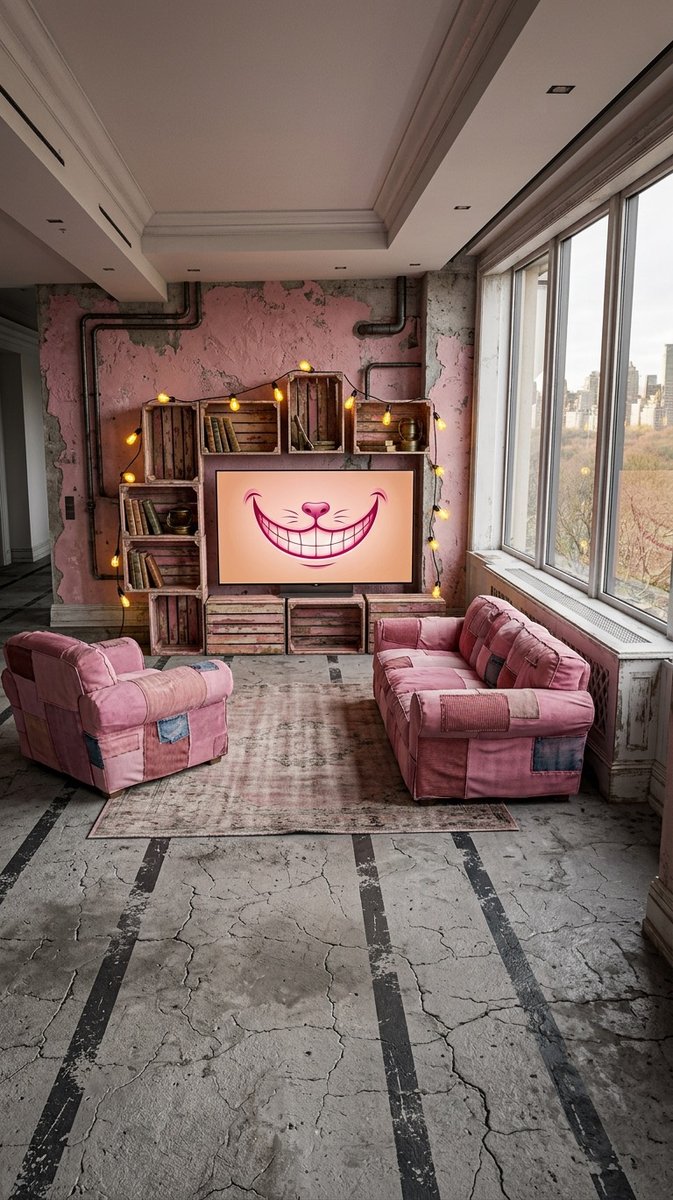
- Image 7: A bubble-gum pink cat puppet with a black top hat, yellow eyes, striped tail, and brown boots, leaning against a pink doorframe.
None of these are room photos. None are mood boards. Yet every single one produced a unique, viable media wall design. Below, we walk through the 9-step process using the ornate decorative surface as inspiration, then show you what the AI created from the other six images.
Step-by-Step Process
Step 1: Start Your Design
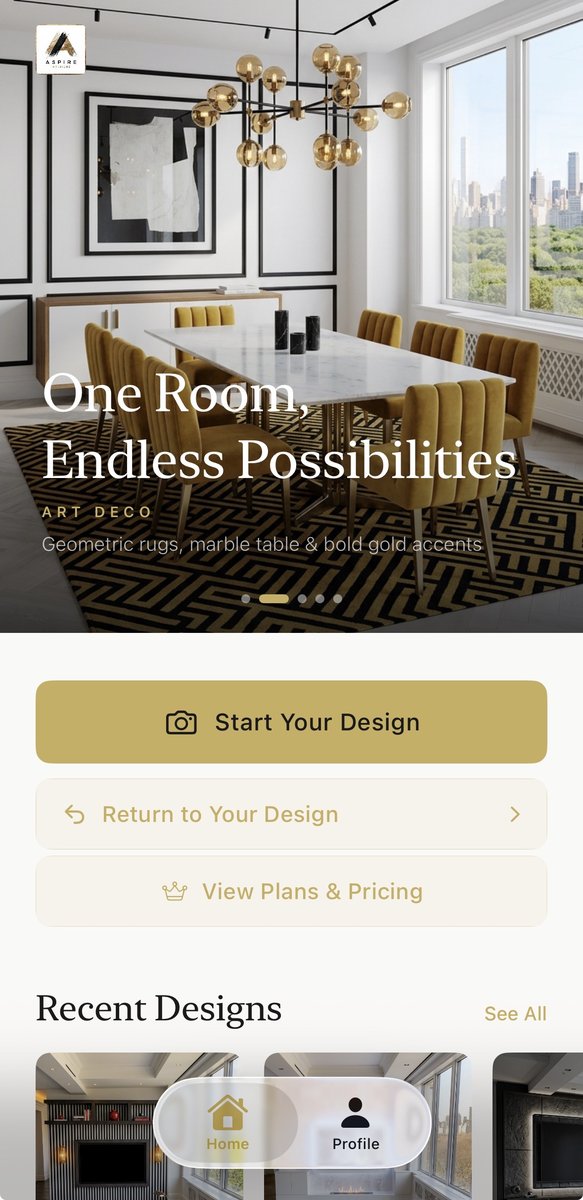
Open the Aspire Interiors app and tap the gold "Start Your Design" button. The app shows a hero image of a dining room with the headline "One Room, Endless Possibilities" and three options below: Start Your Design, Return to Your Design, and View Plans & Pricing.
Step 2: Upload a Photo of Your Room
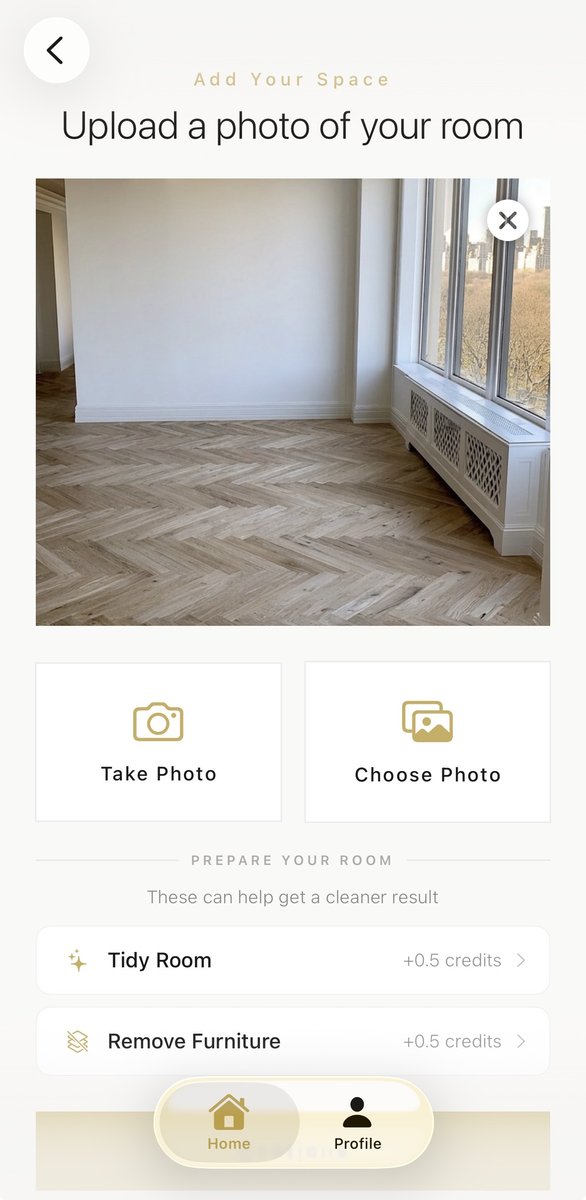
The app asks you to "Upload a photo of your room." Take a photo with your camera or choose from your gallery. We uploaded a photo of an empty room with herringbone wood flooring and large windows. The app also offers optional add-ons: "Tidy Room" and "Remove Furniture" for an extra 0.5 credits each.
Step 3: Choose Your Design Scope
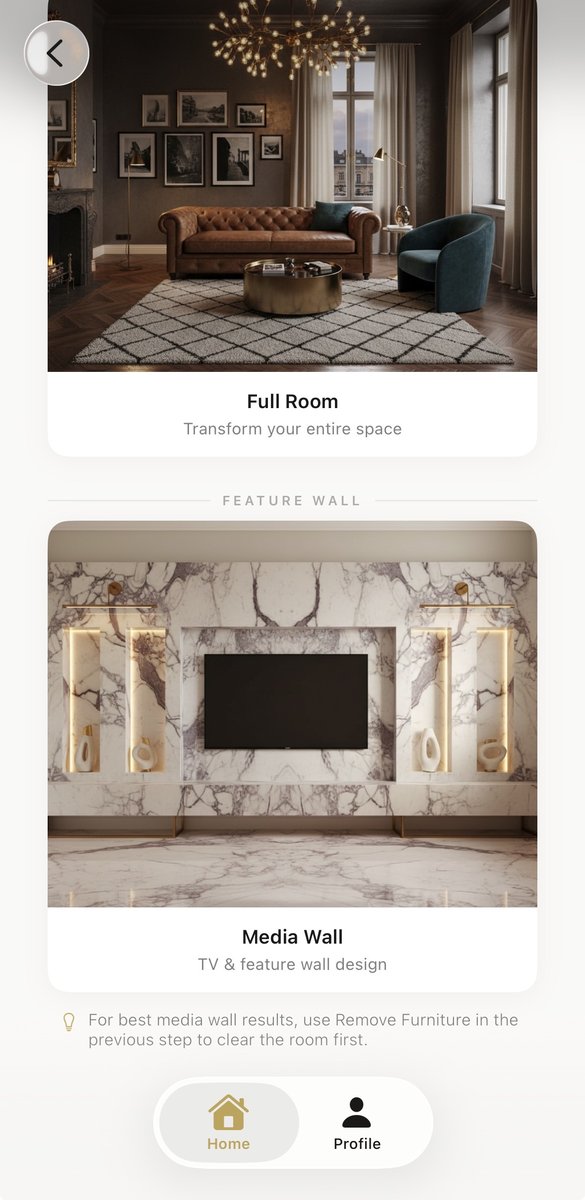
Select between "Full Room" or "Media Wall" design. We selected "Media Wall" to focus on the feature wall area. Full Room redesigns the entire space; Media Wall focuses on the TV, fireplace, and surrounding wall. Want to transform the whole space instead? Follow our guide on how to design your room with AI.
Step 4: Choose Your Design Mode
Choose between three options:
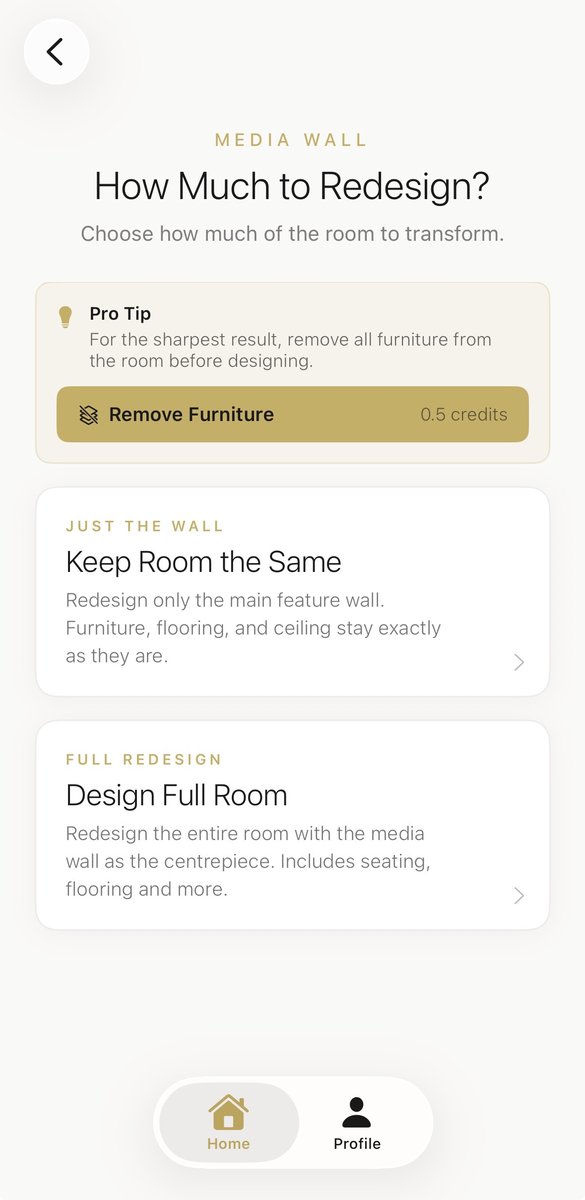
- Keep the room the same — change only the media wall
- Change some elements — adjust the media wall plus select furniture
- Full room design — complete redesign including flooring, walls, and furniture
We selected "Full room design" to show the complete transformation.
Step 5: Select the Inspiration Method
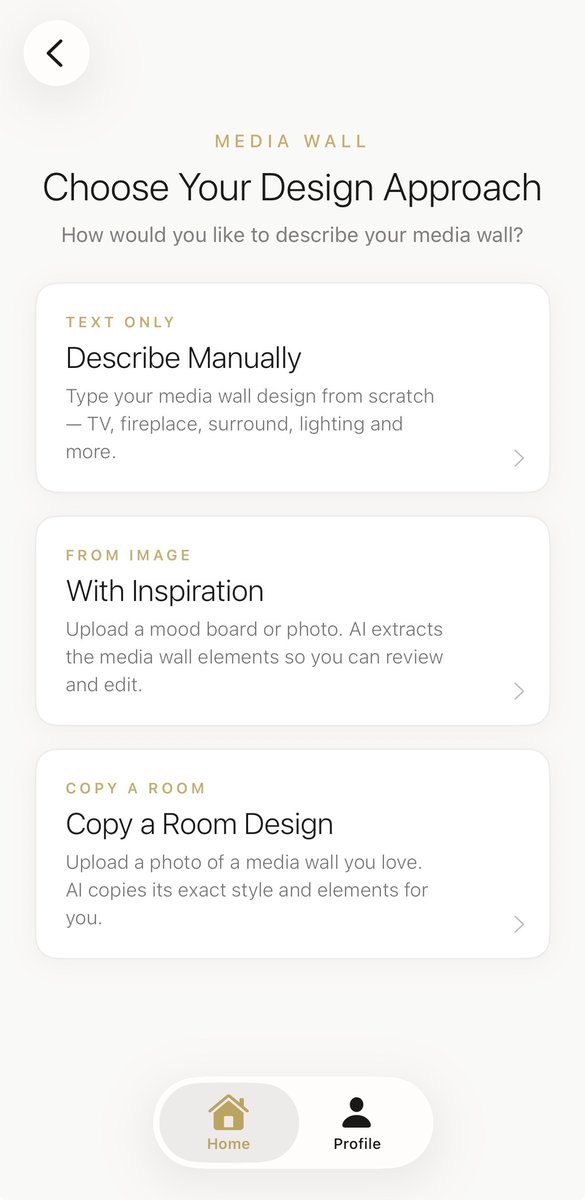
Choose how to describe your design:
- Describe manually — type your own description
- Upload an inspiration image — let the AI analyse any photo
- Copy a room design — replicate a specific room style
We selected "Upload an inspiration image" to demonstrate the random image approach.
Step 6: Upload Your Random Inspiration Image
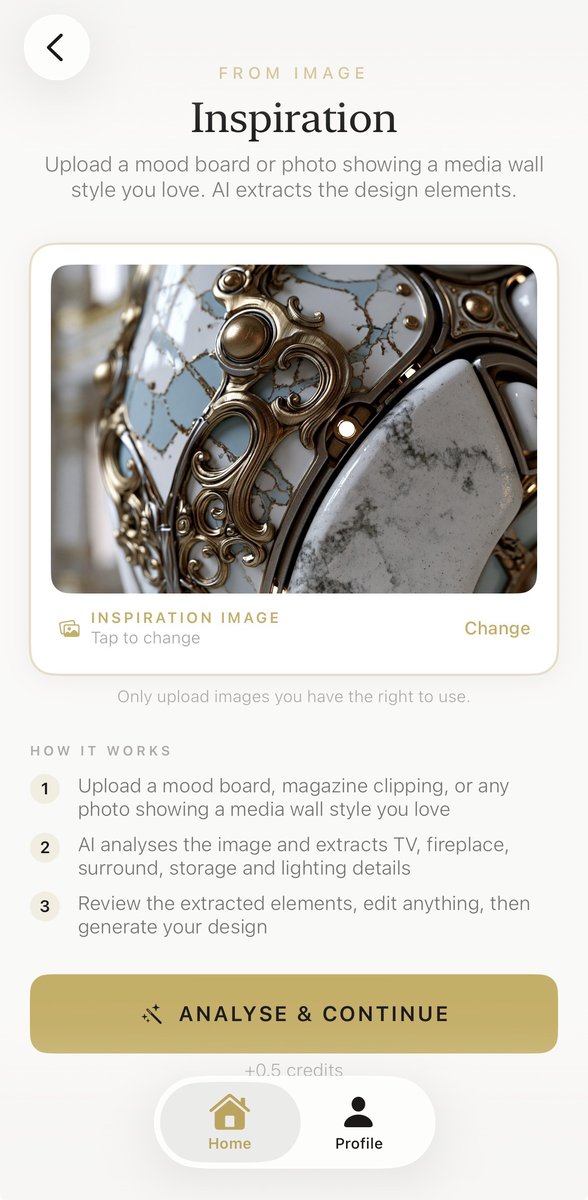
The app shows an "Inspiration" screen with the heading "FROM IMAGE": "Upload a mood board or photo showing a media wall style you love. AI extracts the design elements."
We uploaded the ornate decorative surface — gold filigree, white and pale blue panels, marble veining. The app shows a preview with "INSPIRATION IMAGE" and a "Change" option.
The app explains the process: upload any photo, AI analyses and extracts TV, fireplace, surround, storage and lighting details, review and edit, then generate. Tap the gold "ANALYSE & CONTINUE" button.
Step 7: Review the AI-Extracted Design Elements
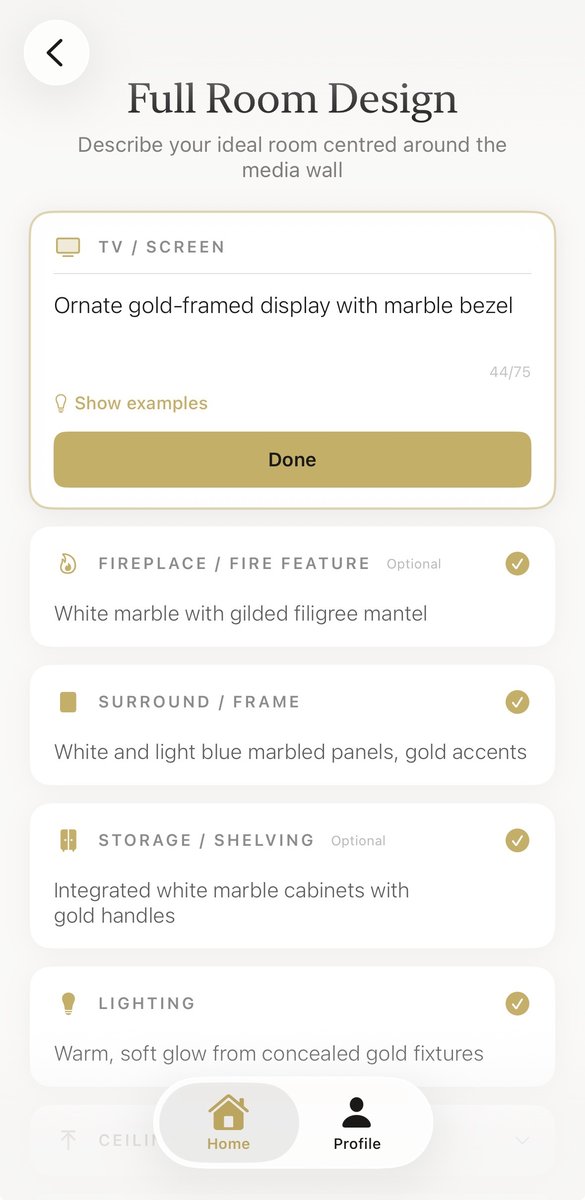
The AI populates all fields automatically. From the ornate decorative surface, it extracted:
- TV / SCREEN: "Ornate gold-framed display with marble bezel" (44/75 characters)
- FIREPLACE / FIRE FEATURE: "White marble with gilded filigree mantel" (selected)
- SURROUND / FRAME: "White and light blue marbled panels, gold accents" (selected)
- STORAGE / SHELVING: "Integrated white marble cabinets with gold handles" (selected)
- LIGHTING: "Warm, soft glow from concealed gold fixtures" (selected)
Each element has a gold checkmark badge. You can edit any field — tap the text, change the words, or add detail. Character limit: 75 per field.
Step 8: Generate with the Half-and-Half Split View
Tap "Done" and the app generates your design. You see a split-screen "BEFORE" and "AFTER" view. The left side shows your original empty room with herringbone floor and bare walls. The right side shows the AI-generated design with the media wall, furniture, and decor.
A draggable slider lets you swipe left and right to reveal more or less of the transformation.
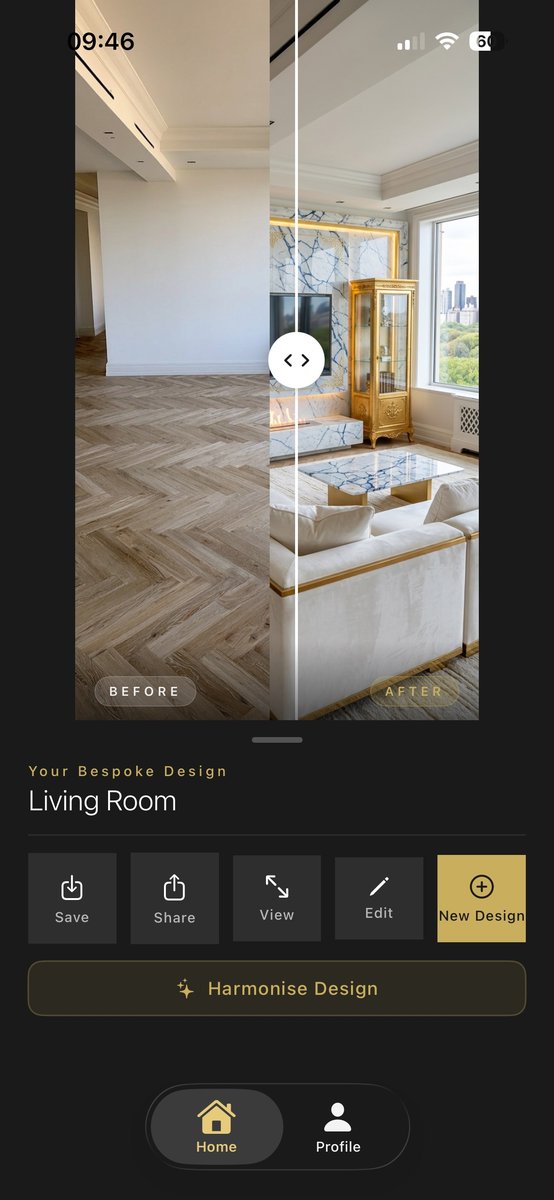
Step 9: The Final Result
Once generation is complete, the app shows the full design with action buttons: Save, Share, View, Edit, and New Design. The final result is a complete living room with the media wall as the focal point.
Showcase: What the 6 Random Images Produced
The step-by-step above used the ornate decorative surface as inspiration. Here are the results from the other six random images — each pair shows the inspiration image and the room design the AI generated from it.

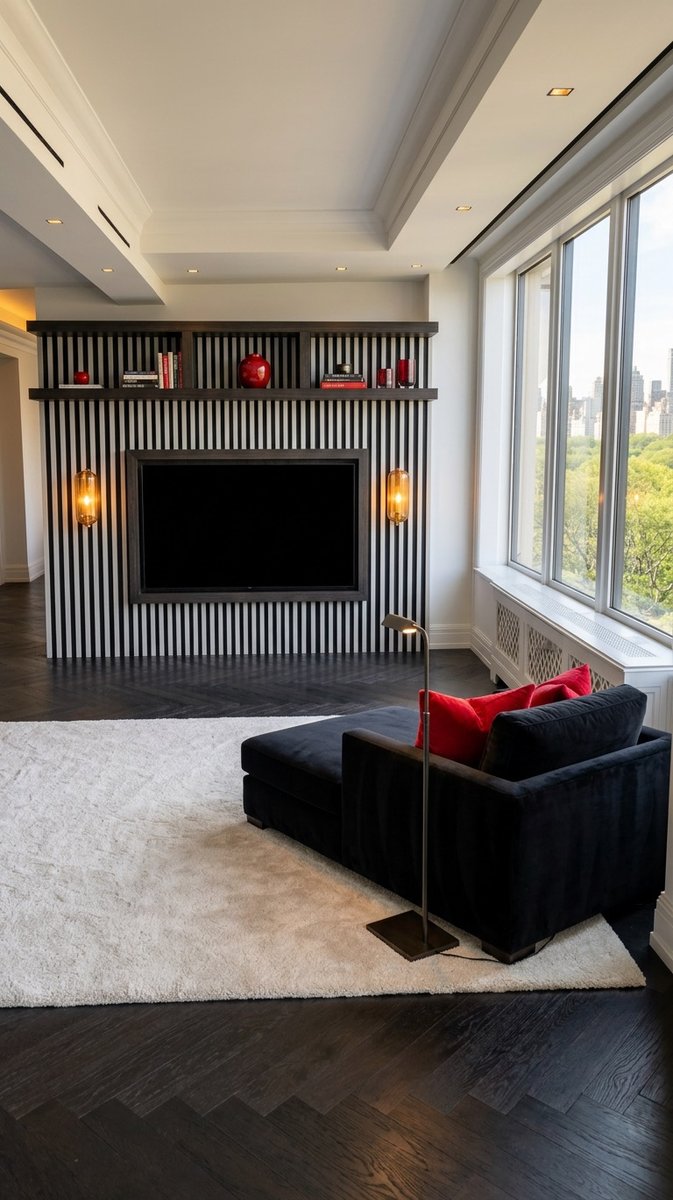
The Inspiration: A black cat wearing a beret, red scarf, and striped Breton sweater, sitting at a Paris café table with the Eiffel Tower behind.
The Result: A sleek living room with black-and-white vertical slatted feature wall, black sectional sofa, red accent vases, and warm amber wall sconces.

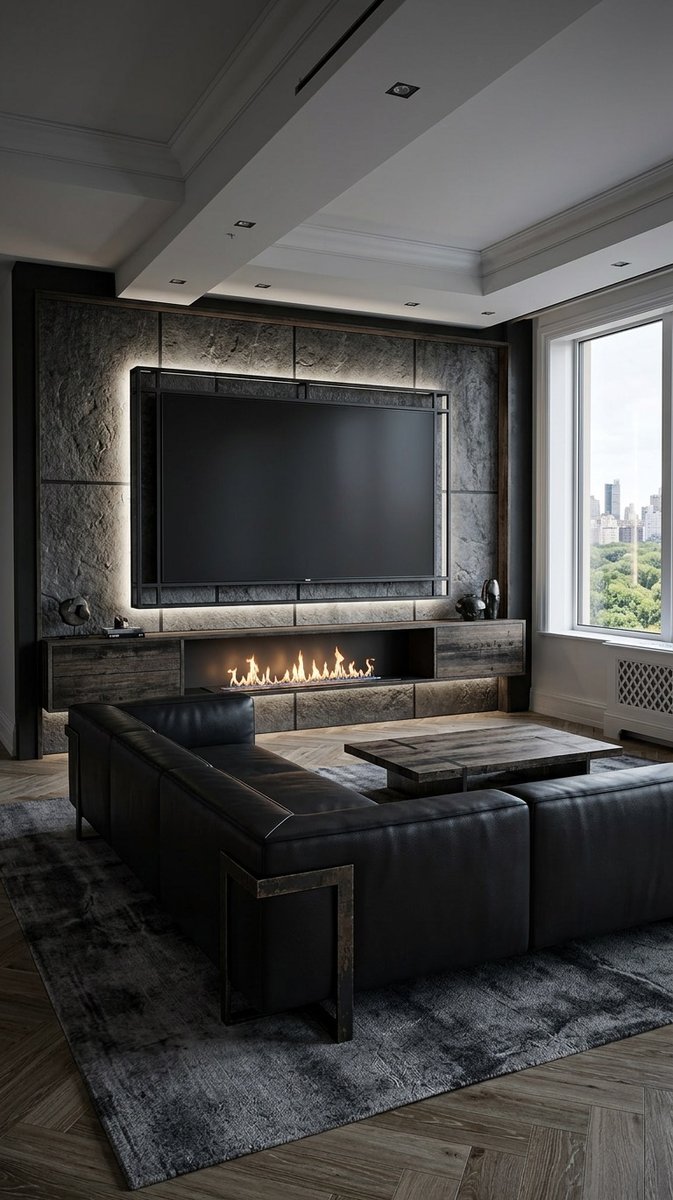
The Inspiration: A hooded skeletal figure with large feathered wings, holding a scythe, seated on a stone grave marker. Monochrome, gothic, highly detailed.
The Result: A dark, industrial living room with textured stone wall panels, a black leather sectional sofa, weathered wood cabinetry, and a linear fireplace with warm orange flames.
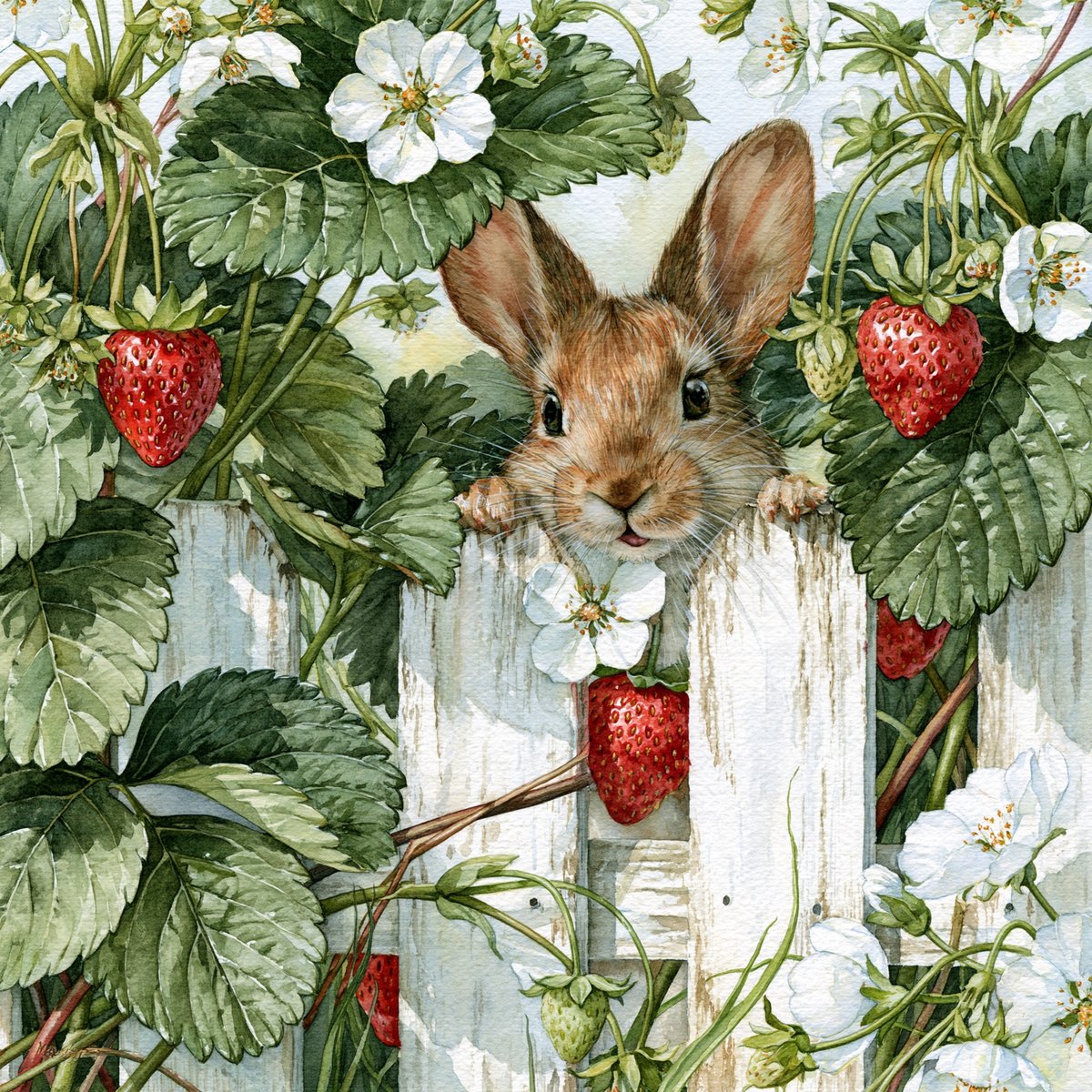
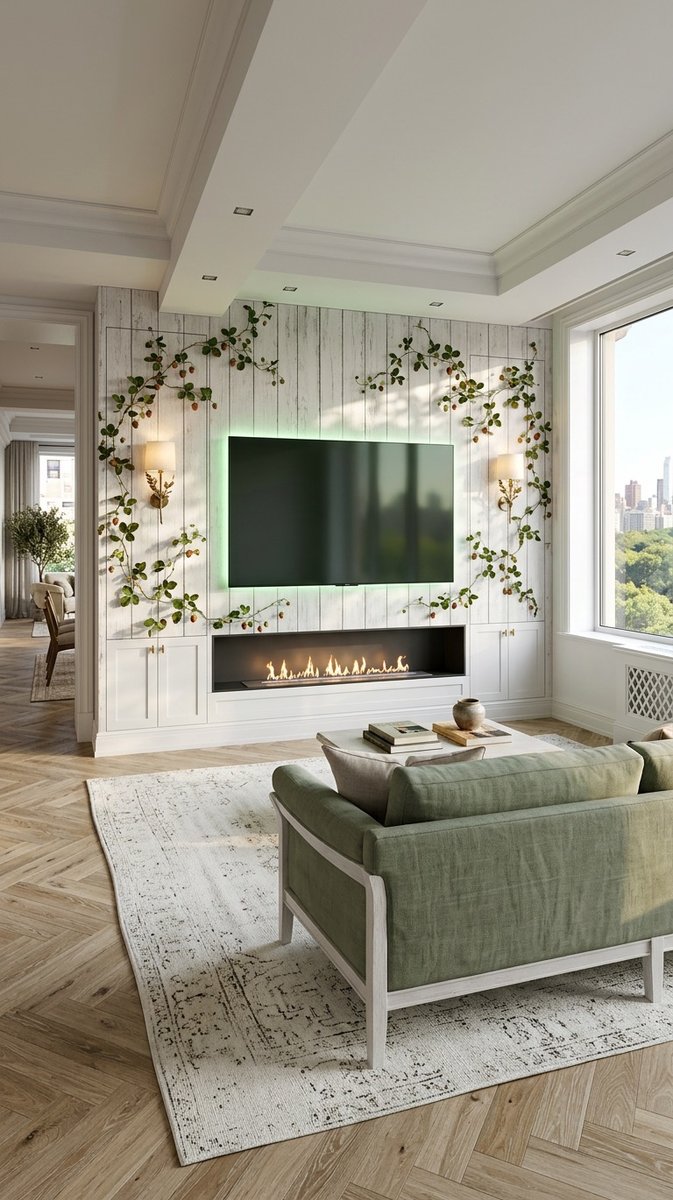
The Inspiration: A watercolour illustration of a white rabbit peeking over a white picket fence, surrounded by strawberry leaves and red strawberries.
The Result: A bright, airy living room with whitewashed wood plank feature wall, green upholstered sofa, and trailing vines around the TV.

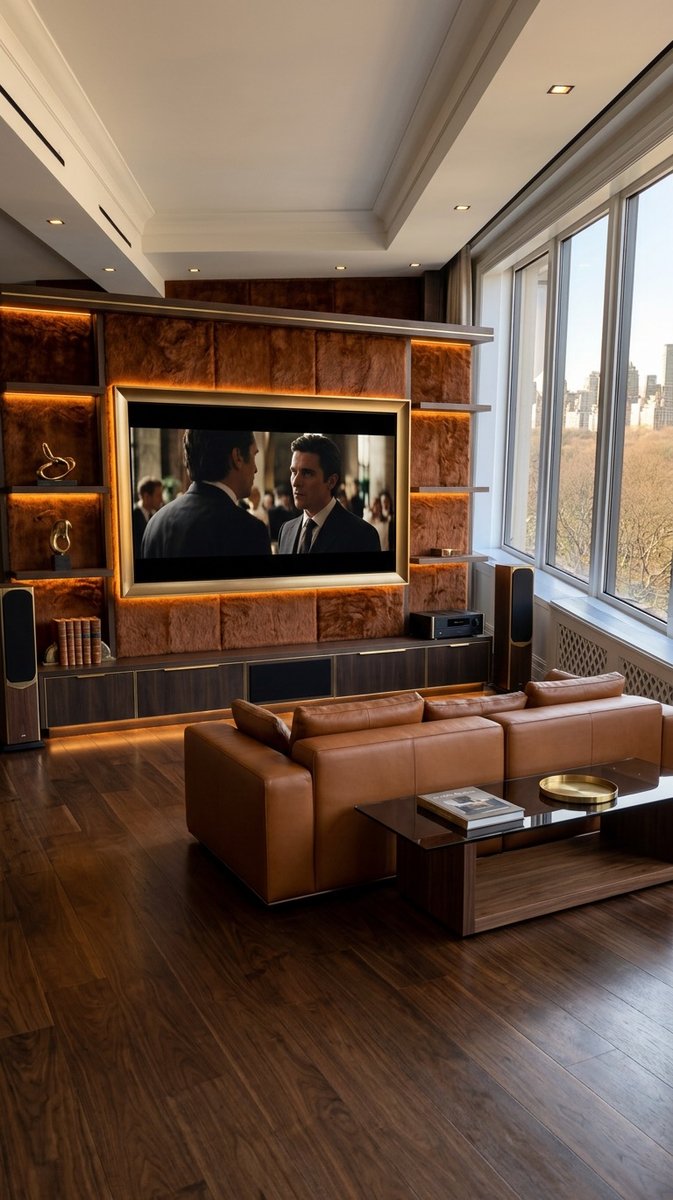
The Inspiration: A tight close-up of a lion's face showing tawny-brown and golden mane fur, amber eye, and black background.
The Result: A warm, masculine living room with caramel leather sofa, walnut wood cabinetry, deep brown textured wall panels, and warm amber backlighting.
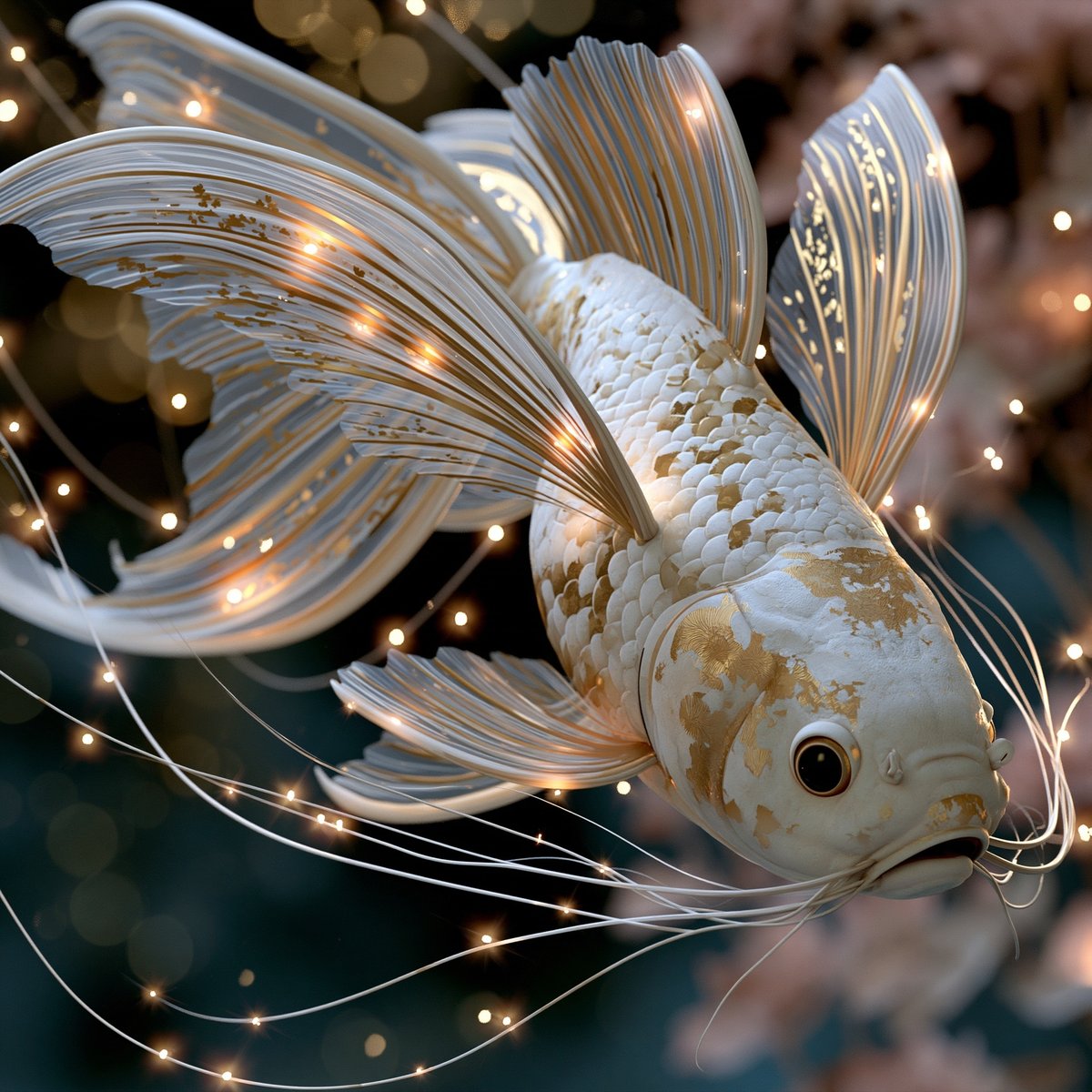
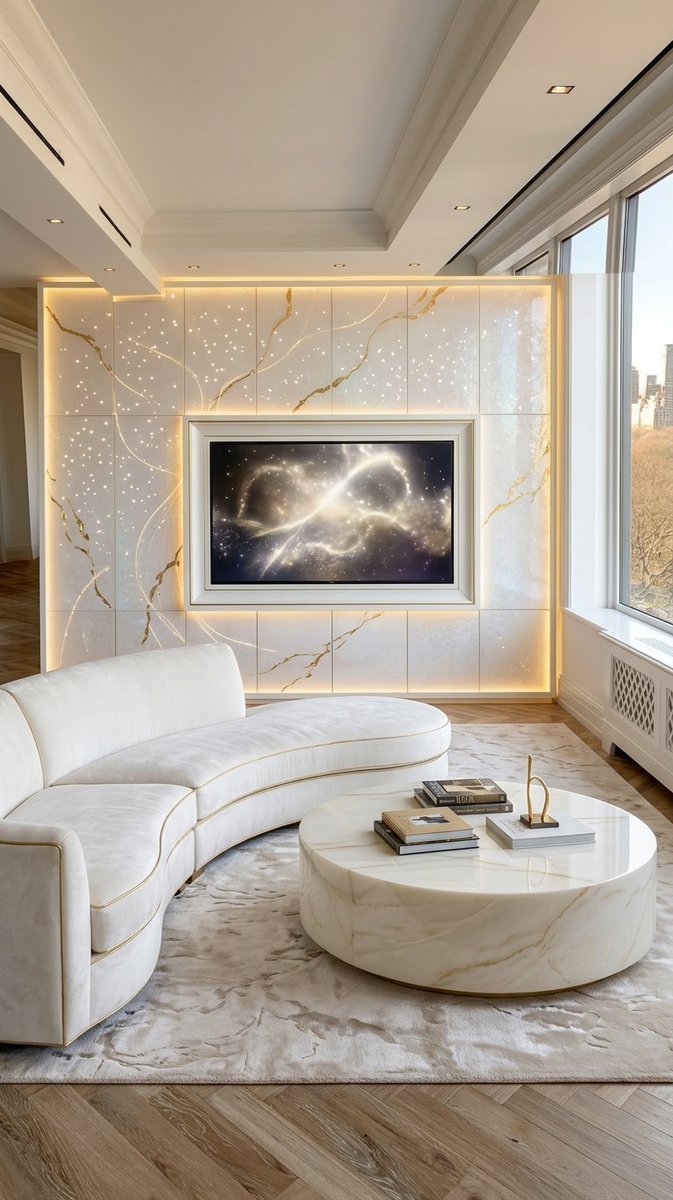
The Inspiration: A white and gold koi fish with flowing fins, glowing warm lights on its whisker filaments, against a deep teal background.
The Result: A high-end contemporary living room with marble feature wall, gold veining, pinprick lighting effect, curved white sectional sofa, and marble coffee table.

The Inspiration: A bubble-gum pink cat puppet with a black top hat, yellow eyes, striped tail, and brown boots, leaning against a pink doorframe.
The Result: A playful, creative living room with bubble-gum pink walls, round mid-century sofa with pink accent cushions, a bright yellow teardrop coffee table, and geometric wall panels echoing the puppet's cartoon style.
Key Takeaways
1. Any image works. The AI doesn't need a room photo, mood board, or interior image. A cat in a beret, a fish, a skull, a rabbit — all produce viable designs.
2. The AI extracts colour, texture, and mood. It doesn't copy the literal image. It takes the gold, the marble, the blue, the playful character — and translates that into furniture, walls, and lighting.
3. Multiple results from one inspiration. The same image generates 6+ variations, each capturing a different aspect. You get options, not a single forced outcome.
4. The process is identical regardless of inspiration. Whether you upload a mood board or a cartoon, the 9-step process is the same. The AI handles the interpretation.
5. You can edit the AI's extraction. If the AI pulls "gold filigree" and you want "silver instead," tap the field and change it. The extraction is a starting point, not a final verdict.
What the AI Cannot Do (Yet)
We test every feature before we write about it. Here's where the AI has limits:
It can't read your mind. If you upload a lion photo and expect a lion-themed room, you'll be disappointed. The AI extracts colour and texture, not subject matter. You won't get a lion statue. You'll get tawny, golden, and warm.
It can't guarantee your exact taste. The AI generates 6 variations. One might be perfect. Three might be close. Two might miss. That's why the edit feature exists — tap, adjust, regenerate.
It can't see your room's exact dimensions. The AI preserves architecture from your uploaded photo, but doesn't measure walls. It designs proportionally, not to scale.
It can't build the wall for you. The app designs. You (or your builder) execute. The output is a visual guide, not a construction plan.
Frequently Asked Questions
Can I really use any image? What about a photo of my dog?
Yes. The AI analyses colour, texture, and mood — not the subject. A golden retriever photo produces warm, golden-toned designs. A black lab produces darker, muted palettes.
Do I need to edit the AI-extracted fields?
Not usually. The extraction is accurate. But you can edit any field to adjust materials or add details the AI missed.
How many results does the AI generate?
Six variations per inspiration image. Regenerate for more options or tap "New Design" to start fresh.
What if I don't like any of the results?
Try a different inspiration image, or edit the extracted fields before generating. Changing "gold" to "brass" or "marble" to "wood" shifts the outcome dramatically.
Does this work for rooms other than media walls?
Yes. The same process works for full room designs, bedrooms, dining rooms, bathrooms, and kitchens. The inspiration approach is universal.
How long does the generation take?
10–30 seconds per design. The half-and-half split view appears immediately while the full resolution renders.
Can I use multiple inspiration images?
Currently, one image per design. For multiple influences, generate from each image separately and blend manually, or use "Describe manually" to combine ideas.
Do I need credits?
Yes. Each generation uses credits. The app shows your balance before generating. Optional add-ons like "Tidy Room" or "Remove Furniture" use extra credits.
Is my uploaded photo stored?
Your photos are used for the design process only. The app does not store or share images externally. See the privacy policy for full details.
Can I save or export the designs?
Yes. Tap "Save" to store in your account, or "Share" to send to someone else. You can also screenshot the split view for before/after comparisons.
Do I need a stud wall to build a media wall?
Most designs recess the TV and cabling into a false (stud) wall 75–100mm deep — but flush-mounted designs with surface panelling can work without one. Both approaches appear in our media wall makeovers.


Can a media wall include an electric fire?
Yes — it's the most popular configuration. Electric fires need no flue; allow the manufacturer's clearance below the TV (usually 300mm+) or choose a hearth-mounted design.
How high should the TV be on a media wall?
Centre of screen at seated eye level — typically 100–110cm from the floor for a 55–65" TV. Above-fireplace placements run higher; a tilting bracket helps.
Can I design my media wall from a photo?
Yes — photograph the wall, upload to the Aspire Interiors app, and describe the design you want. Both our media wall makeovers started as photos of bare walls.
Ready to Design Your Media Wall? Follow Along Now
You now know the exact process. Here's your checklist:
- Open the Aspire Interiors app on your iPhone
- Tap "Start Your Design"
- Upload a photo of your room (daylight, corner angle, full wall visible)
- Select "Media Wall" → "Full Room Design" → "With Inspiration"
- Upload any random image — your dog, a cartoon, a flower, a door handle
- Review the AI-extracted fields, add any specifics
- Tap "Generate" and wait 15–20 seconds
- Drag the before/after slider. Save the result.
- Tap "Edit" to refine — flooring, wall colour, anything you want
Your first 2 designs are free. No credit card. No subscription.
For more app designs, media wall inspiration, and behind-the-scenes content, visit our YouTube and TikTok pages.
Last updated: August 2026. Features and pricing may change. Check the app for the latest details.
By Mark Lunnemann — Founder, AutoMazen.ai, a London-based AI design tools company.
Related Blogs
- 12 Luxury Media Wall Ideas That Look Five Times Their Budget — fire, lighting, storage and the materials that deliver them
- How to Design Your Media Wall with AI: The Complete Guide — The curated mood board approach
- How to Design Your Room with AI: A Complete Guide — Step-by-step room design for any space
- Best AI Room Design Tools UK 2026: We Tested Them All — Honest reviews of every AI room design app worth using
- Media wall before-and-after makeovers — real walls redesigned by AI, with the exact app fields to copy
- High-Contrast Minimalism: the full home tour — the media wall is this style's natural habitat
- How much does AI interior design cost in 2026? — app pricing vs designer fees, honestly
Last updated: August 2026