How to Design Your Room with AI from One Photo
Updated September 2026 · 12 min read
You can redesign any room with AI by uploading one photo and describing the style you want — the AI keeps your layout, windows and proportions, then generates a new design in about a minute. This guide covers the full method: photo technique, briefing options, and refining the result.
The Five Steps, Start to Finish
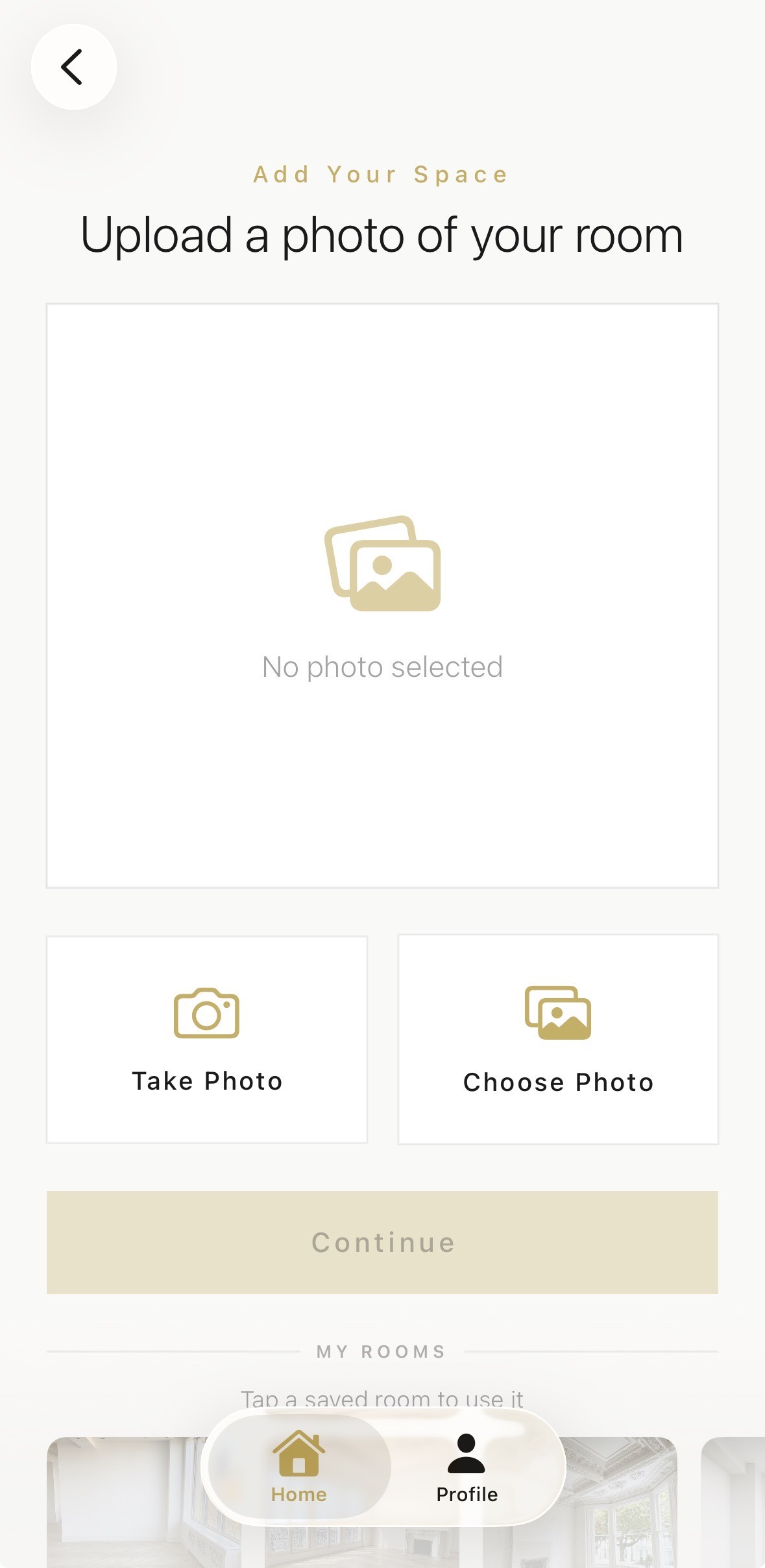
- Photograph your room. Use a phone photo taken in daylight that shows the full room, including windows and doors.
- Upload the photo. Open the Aspire Interiors app, select the room type you are designing, and upload the photo at full resolution.
- Describe the style. Fill the style, colours, materials and mood fields in your own words — plain English beats design jargon every time.
- Generate the design. Tap generate and wait 30–60 seconds while the AI renders a photorealistic redesign of your actual room.
- Refine the result. Edit any element that misses the mark and regenerate until the room matches your vision — iteration is where good designs happen.
There is a particular kind of paralysis that hits about three weeks into saving Pinterest images. You have two hundred pins, four tester pots drying on the wall, a partner who has stopped having opinions, and no actual idea what the room will look like when it's done. The gap between the room in your head and the room in front of you is where renovations stall — and it's exactly the gap AI room design closes.
The method itself is almost embarrassingly simple: one photograph of your room, a description of what you want, about a minute of generation, then a few rounds of plain-English refinement until the render matches the picture in your head. What changes from room to room are the details — a bathroom's fixed plumbing, a kitchen's layout, a bedroom's light — and those are covered in the room guides. This page is the master method: the decisions that matter inside every step, in the order you'll meet them, whichever room you're standing in.
Everything below is written from running this loop dozens of times in the Aspire Interiors app — including the mistakes, which are usually more instructive than the successes. You get 2 free designs on signup, which is enough to follow the whole method and still have one left for a second style.
↓Design your room with AIWhy the Photo Does Most of the Work
Ask anyone who's had a disappointing first render and you'll usually find a disappointing first photo behind it. The AI designs what it can see — feed it a dim, partial, fisheye view of half your room and it will faithfully design half a room.
The shot that works: stand in the corner or doorway, phone at chest height, and frame the room so the windows and the main floor area are visible. Daylight, with the lights on as well — you want the camera to capture both the natural light direction and the room's artificial lighting, because the AI reads both. Wide-angle phone lenses are fine, but avoid the extreme 0.5x mode that bends walls at the edges; the AI reads those bent proportions as real.
Two get-outs if your room isn't camera-ready. First, everyday clutter genuinely doesn't matter — after upload the app offers a tidy pass that clears surfaces while keeping your furniture, and a remove-furniture option that strips the room to a blank canvas for full-renovation concepts. Second, awkward rooms — L-shapes, sloped ceilings, chimney breasts — aren't a problem to hide but information to add: mention them in your brief ("sloped ceiling over the bed wall") and the AI designs around them instead of pretending they don't exist.
Three Ways to Brief (and When Each Wins)
Once the photo's in, you brief the AI one of three ways — and picking the right one is the biggest quality lever in the whole method.
Describe manuallywhen you know what you want in words. You fill the style, colours, materials and mood fields in plain English — no design vocabulary required, but specifics pay: "warm oak flooring, oatmeal linen sofa, picture lights over the artwork" produces a noticeably sharper render than "cosy neutral". This route suits anyone who's been collecting opinions for months and knows exactly what they like.
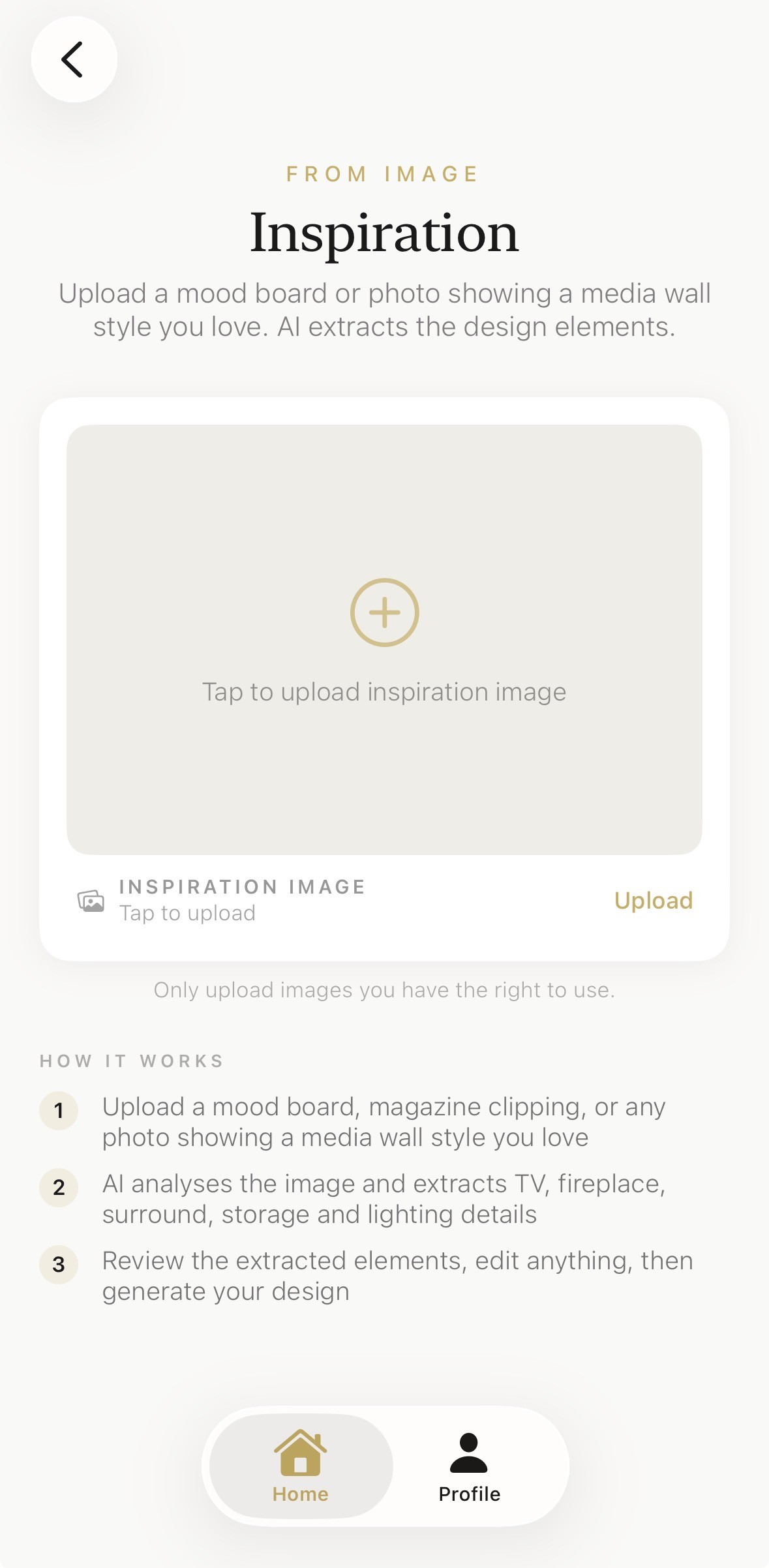
Inspiration imagewhen you have the feeling but not the words. Upload anything that captures it — a mood board, a Pinterest save, a magazine page, a photo of a hotel room you didn't want to leave. The AI analyses the image and extracts its design DNA: palette, materials, fixture styles, lighting mood. One tip from experience: a tight mood board of three to six images with a consistent palette extracts far better than a 40-image dump — you're briefing, not archiving.
Copy a Room Design when you've seen theroom. A friend's living room, a show home, a restaurant interior you photographed — the AI translates that room's design onto your room's proportions. It's the least-used route and occasionally the most satisfying.
The Twenty-Second Check Before You Generate
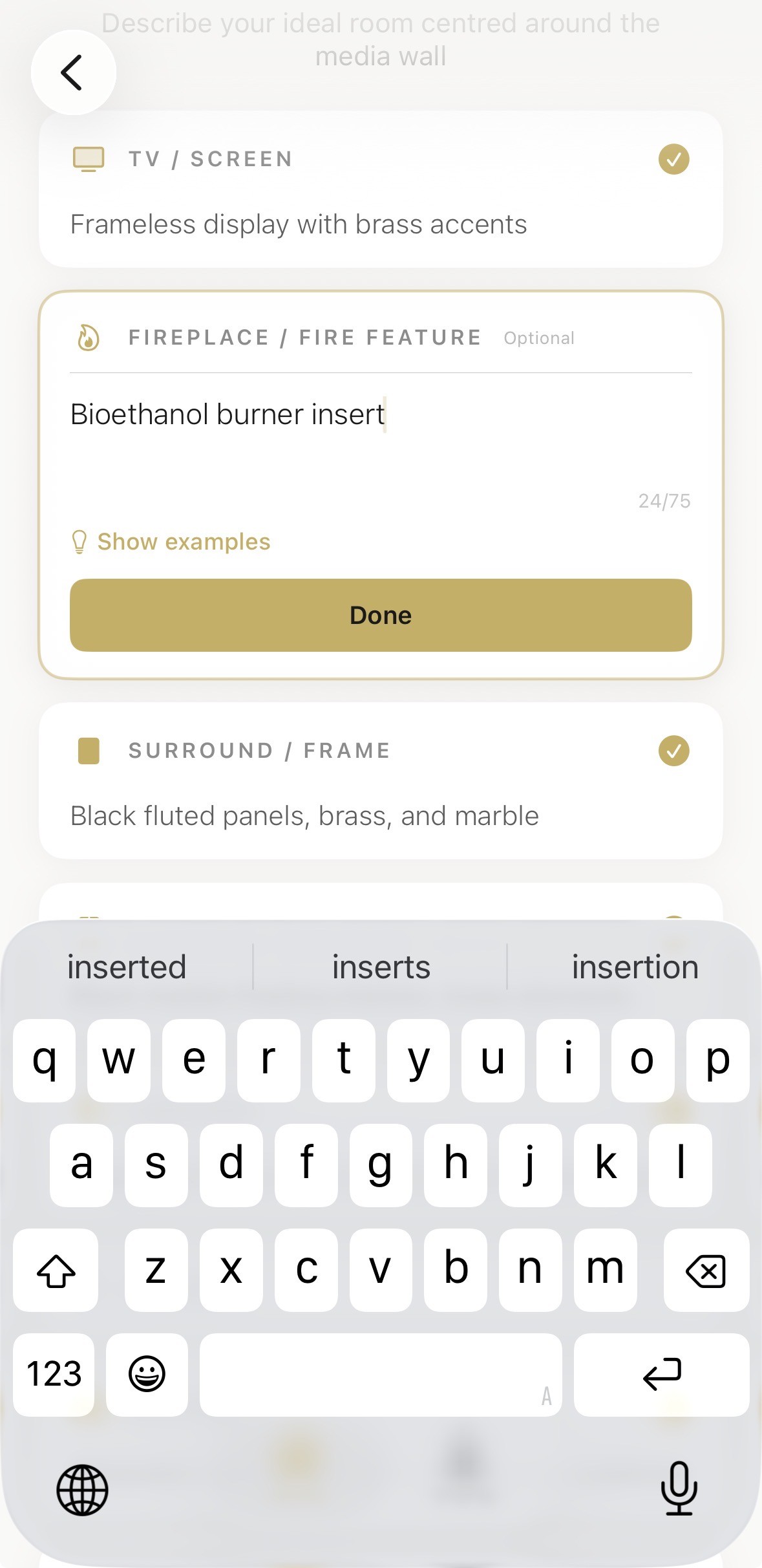
Between briefing and generating sits the step most people skip and shouldn't: reading the extracted fields. Whichever briefing route you used, the app shows you what it understood — the palette it found, the materials it picked, the fixture styles it's planning. This is your last cheap chance to correct course.
Treat it like proofreading a text before sending. If it read your mid-century mood board and decided you want "contemporary minimalist", fix the text right there — type the correction into the field. You can also add manual specifics at this stage; during one of our test runs we added a bioethanol burner insert to a media wall brief at exactly this point, and it arrived in the render as if it had always belonged. Twenty seconds here routinely saves a wasted generation — and generations are the currency you're spending.
First Render Is a Draft: The 80% Rule
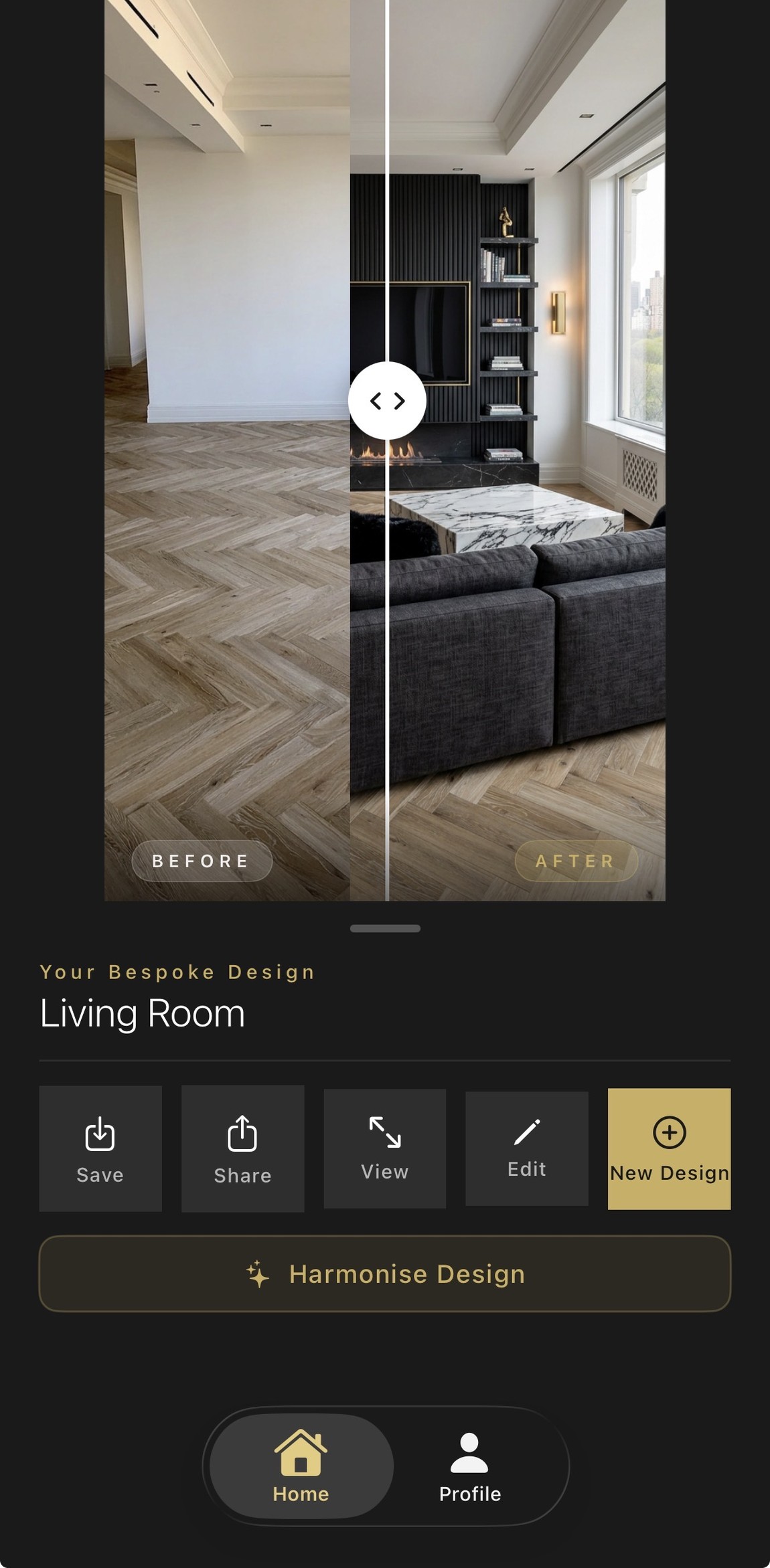
Generation takes about a minute. What comes back is your room — same windows, same proportions, same light — wearing the design you briefed. Now the skill is in how you judge it.
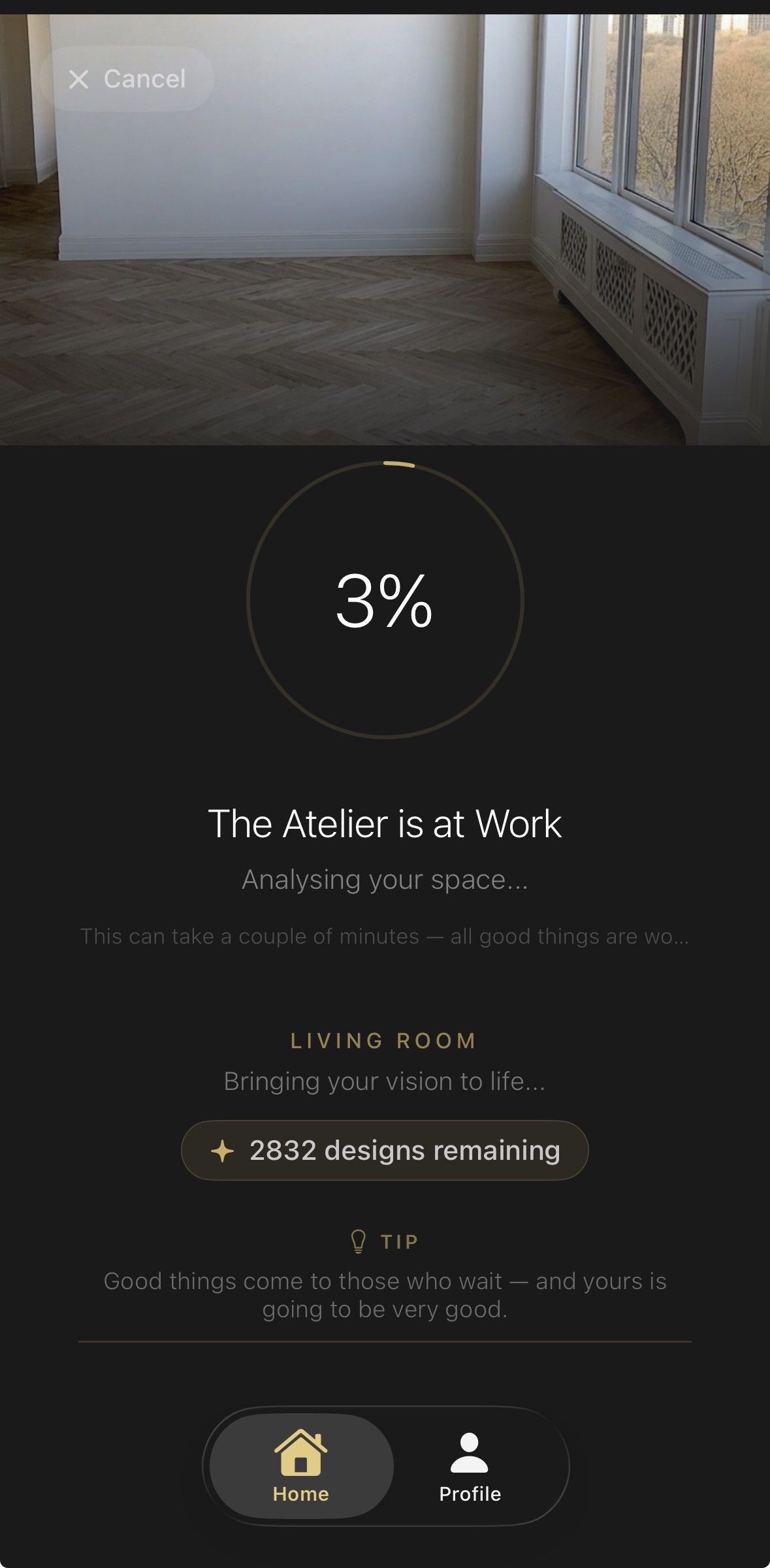
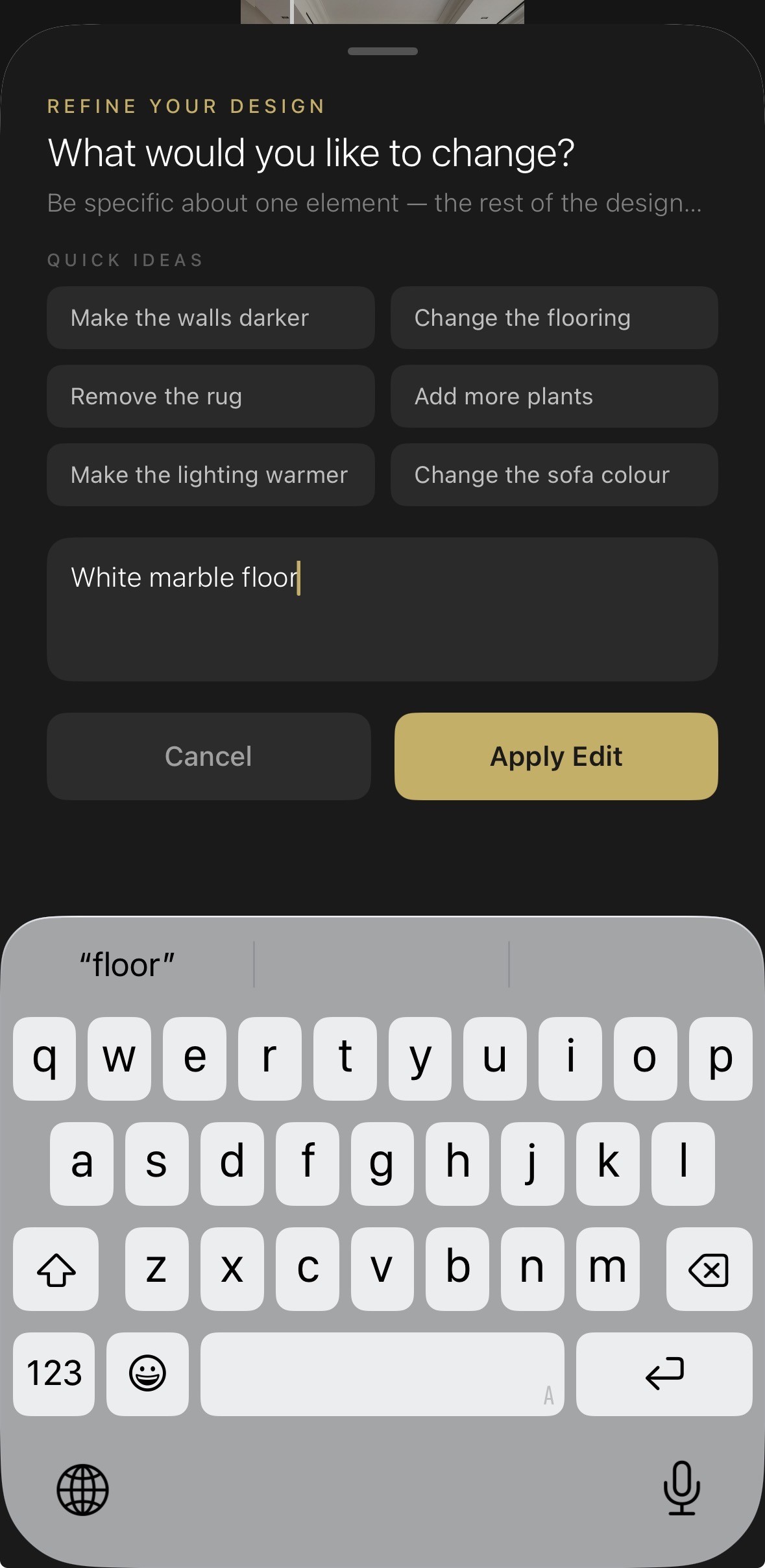
Aim for 80%, not 100%. If the layout works, the palette's right and the mood lands, you have a draft worth refining — the remaining 20% is what Edit Mode is for. Type the change in plain English ("change the floor to white marble", "swap the coffee table for an oak one", "warmer lighting over the reading chair") and the design regenerates with everything else intact. The before/during/after slider on the result screen is the honest judge here: drag across and the transformation — or the place where it drifted — is immediately obvious.
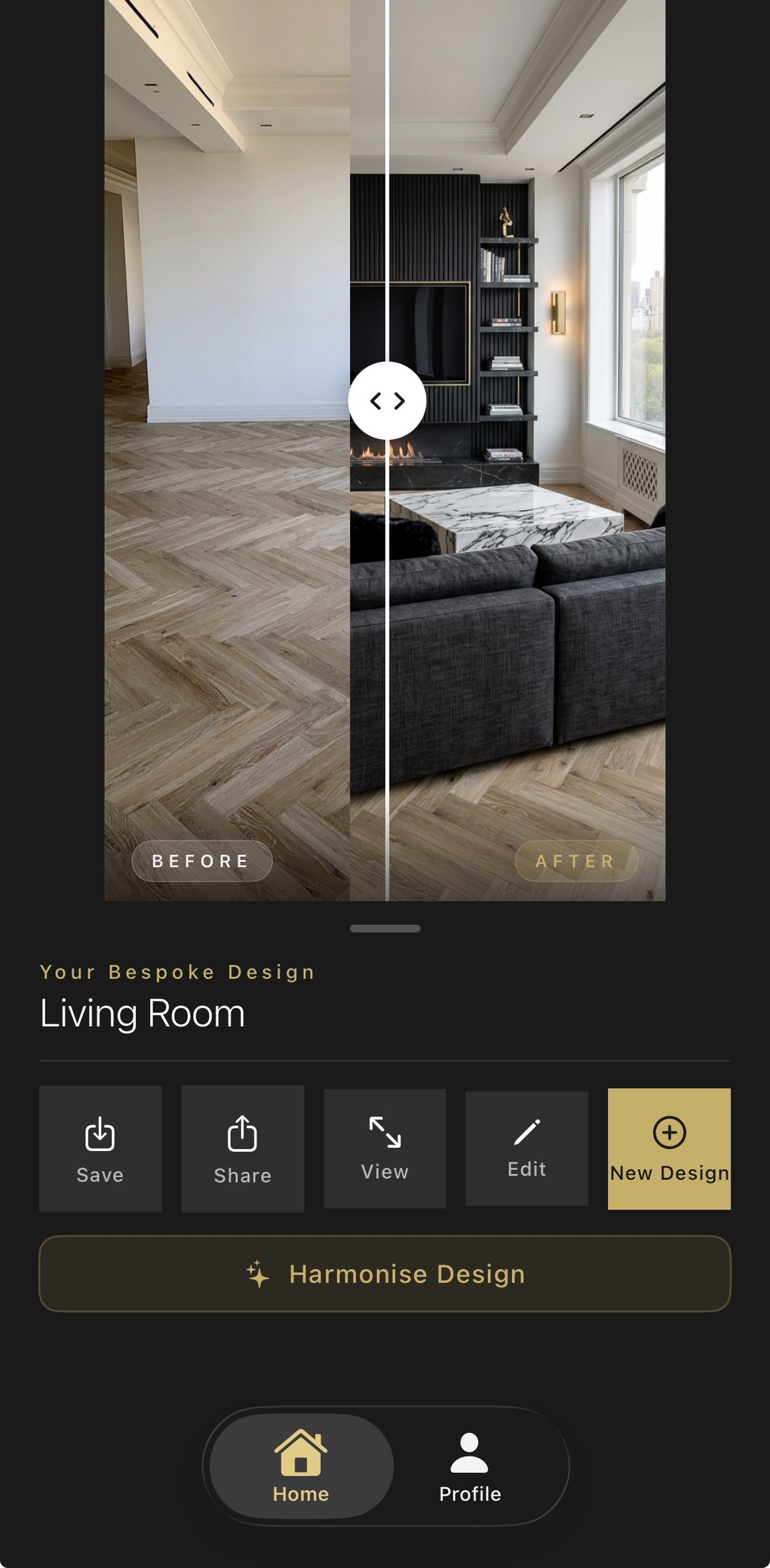
And the honest caveat we always give: occasionally a render misses something obvious — a radiator, a door, once memorably a toilet. That's not a failed generation, it's a missing sentence. Add the sentence in Edit Mode and the design comes back complete. Starting over is almost never the right move; iterating is where good designs happen.
One Method, Every Room
The loop above never changes. What changes per room is where the traps are — and that's what the room guides are for:
- Bathroom — the expensive-mistake room: fixed plumbing, permanent materials, and why moisture should shape your brief.
- Kitchen — the renovation-budget room: layouts, and where the money actually goes.
- Bedroom — the low-stakes experiment room: mood, light and textiles first.
- Living room — the public room: focal points, and designing for the room everyone sees.
- Dining room — the atmosphere room: designing for occasions, not weekdays.
Read the one for the room you're doing, run the method, and you'll have a design worth building from.
From Render to Room
A finished render is more useful than it looks. As a shopping list, work through it element by element — sofa, rug, flooring, lighting, paint — and you know what to price before you visit a single shop. As a trade brief, it ends the telephone game: a decorator shown a picture of the intended finish quotes against the picture, not against their imagination. As a household peace treaty, it settles the "I just can't picture it" standoff in one viewing — alignment before spending is the cheapest win in any project.
Most people also discover the render's quieter use: testing the brave option. Use one of your two free designs on the safe choice and the other on the version of the room you secretly want. The side-by-side usually settles which one you actually love — and it's considerably cheaper to be wrong on screen than on the walls.
Ready to See Your Room Reimagined?
Upload a photo of your room to the Aspire Interiors app and generate a bespoke full-room concept in minutes.
↓Start your AI designFrequently Asked Questions
What is AI room design?
AI room design uses artificial intelligence to create custom interior concepts for your specific room. You upload a photo, choose a style or inspiration, and the AI generates a design tailored to your space. Unlike a template, it respects your room proportions, lighting, and architecture.
How do I design my room with AI?
Upload a photo of your room, select a design direction or upload inspiration, and let the AI generate a bespoke concept. You can then refine the result with text prompts until it is perfect. The process usually takes just a few minutes from start to finish.
Is it free to design a room with AI?
Aspire Interiors offers free credits to get started, so you can try AI room design without committing to a paid plan. This lets you explore the tool and see the quality of the output before deciding whether to continue.
Can I upload my own photo to design a room?
Yes. The AI uses your uploaded photo to understand the room proportions, layout, and existing features, so the design fits your actual space. A clear, well-lit photo from a corner position gives the best results.
Can I design just a media wall, or does it have to be a full room?
You can choose either. The Aspire Interiors app supports both full room design and media wall design. See our AI media wall design ideas for inspiration.
What styles can the AI generate?
The AI can generate virtually any style — modern, classic, boho, minimalist, Art Deco, industrial, and more. You can also describe a custom look or upload a mood board for a more personalised result.
Can I edit the AI-generated room design?
Yes. Every element can be changed with natural language prompts. Update colours, materials, furniture, flooring, or lighting until the design is exactly right. You can also generate multiple variations to compare.
Will the AI design match my actual room?
Because the design is based on your photo, the proportions, perspective, and architecture of your room are preserved in the generated image. It will not look like a random stock photo because it is built from your actual space.
Can I design a room from a mood board instead of a photo?
Yes. You can upload a mood board, collage, or multiple inspiration images. The AI will extract colours, materials, and stylistic cues and apply them to your room design.
What happens if my room is awkwardly shaped?
The AI works with the shape it sees in your photo. You can also describe the awkward features in your prompt and ask the AI to design around them.
Start Designing Your Room with AI Today
Designing your room no longer has to be a guessing game. With Aspire Interiors, you can upload a photo, follow a simple step-by-step process, and generate a bespoke room design in minutes. Whether you want a full room transformation or a focused media wall feature, the AI gives you the clarity to move forward with confidence.
↓Download on the App StoreOr explore more on the Media Wall Design page.
Related Reading
Published: 19 July 2026. By Mark Lunnemann — Founder, AutoMazen.ai. Built by AutoMazen.ai.